


This article is for anyone who edits photos online and needs more than a one-click filter: bloggers, small business owners, social media managers, educators, and independent creators who want real control over how their images look without installing software or learning professional design programs. You will walk away knowing exactly what features to look for, how different categories of tools handle manual adjustments, and how to match the right editor to the work you are actually doing. By the end, you will be equipped to make a confident, informed choice rather than guessing based on a homepage promise.
What “Manual Adjustments” Actually Means in an Online Editor
Not every tool that calls itself a photo editor gives you real manual control. The term gets applied loosely to anything from a single brightness toggle to a full suite of light and color sliders. Before you can evaluate which online editor is right for you, it helps to understand what a meaningful set of manual adjustments actually looks like in practice.
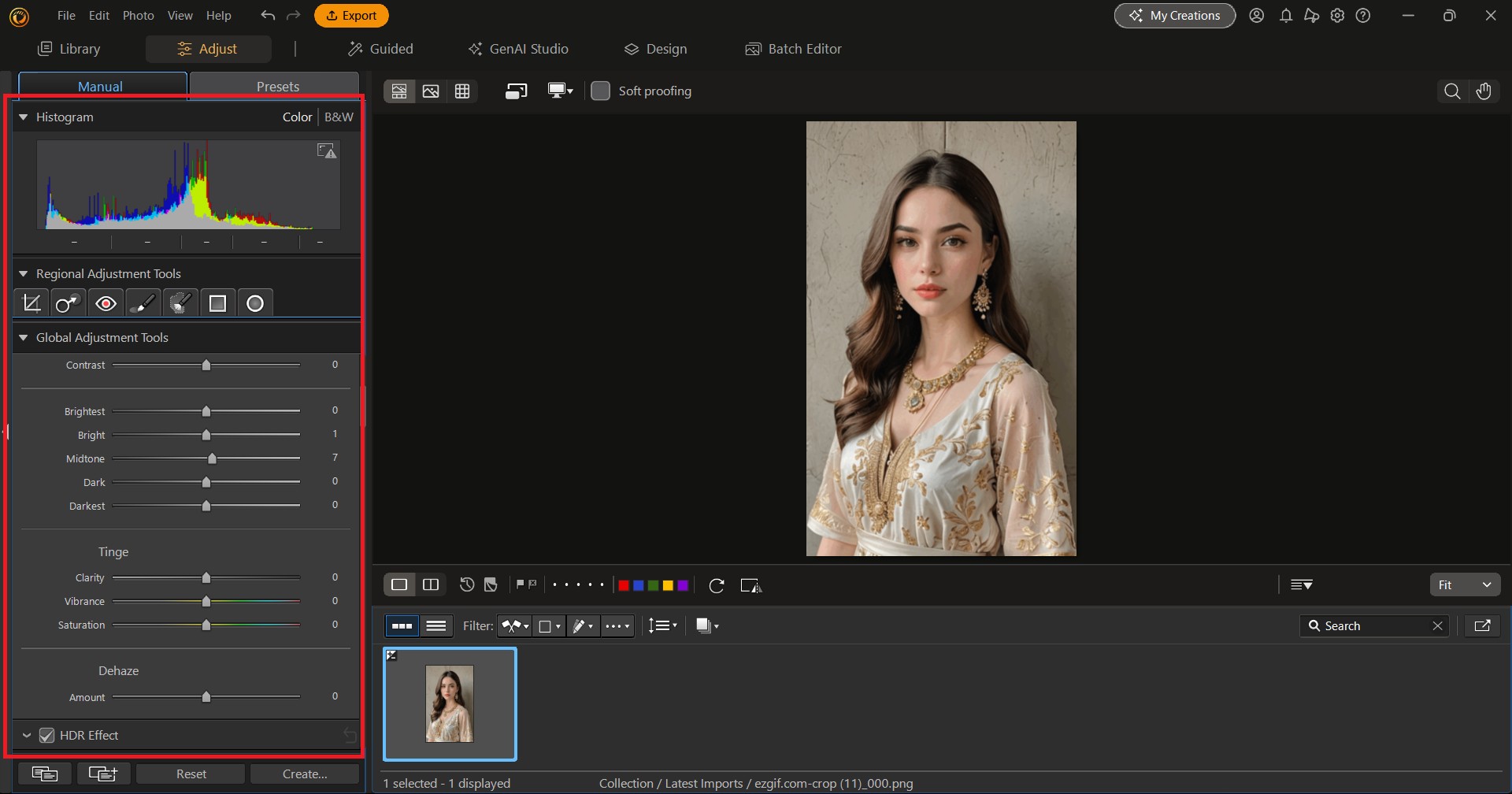
At a minimum, a legitimate manual adjustment toolkit includes independent controls for brightness, contrast, and saturation, plus the ability to crop to a custom size or ratio and resize to specific pixel dimensions. Tools that stop there are functional but limited. More capable editors add controls for exposure, highlights, shadows, sharpness, temperature, and tint. The more independently these controls operate, the more precision you have. A single “enhance” slider that adjusts multiple settings at once is not the same as a set of discrete sliders you can fine-tune one at a time.
The interface matters as much as the feature list. A tool can technically offer ten adjustment controls and still be unusable if they are buried inside submenus, require numerical input rather than draggable sliders, or do not update the preview in real time. When you are evaluating any editor, test the adjustment interface directly rather than relying on the feature list alone.
The Core Criteria for Evaluating Online Photo Editors
Use these eight criteria as a consistent framework when comparing any online photo editing solution. They cover everything that separates genuinely useful tools from those that look impressive on a features page but fall short in practice.
1. Granularity of brightness and light controls Does the tool offer a single brightness slider, or does it separate brightness from exposure, highlights, and shadows? Granular light controls allow you to brighten a dark foreground without blowing out the sky, which a single brightness slider cannot do.
2. Crop tool flexibility A strong crop tool lets you crop freehand, by a fixed aspect ratio, or by custom pixel dimensions. It should also include a straighten or rotation control so you can fix tilted horizons in the same step.
3. Resize precision Look for editors that allow you to set exact pixel dimensions for both width and height, with the option to lock the aspect ratio. Tools that only resize by percentage are limiting when you need to hit a specific size for print or web.
4. Color adjustment controls Saturation, hue, and color temperature controls are the complement to light adjustments. A tool that offers light controls but not color controls will leave you unable to correct a photo that looks too warm, too cool, or oversaturated straight from the camera.
5. Real-time preview Every adjustment should update the image preview instantly as you move the slider. If you have to click an “apply” button to see the result of a change, the workflow becomes tedious and you are more likely to over-correct or under-correct.
6. Non-destructive editing Non-destructive editing means the tool preserves your original image so that changes can be undone or revised at any point. Tools that apply changes permanently as you go are risky, especially when you are experimenting with multiple adjustments at once.
7. Export quality and format options The best editing in the world is undermined by a poor export. Check whether the tool exports at the resolution you uploaded, whether it supports the file formats you need (JPEG, PNG, WebP), and whether it allows you to control compression quality on download.
8. Free versus paid access to adjustment features Many online editors restrict their most useful controls to paid plans. Before building a workflow around any tool, confirm which specific adjustments are available on the free tier and whether the paid upgrade is reasonably priced for your use level.
How Different Categories of Online Editors Handle Manual Controls
Online photo editors fall into three broad categories, and each handles manual adjustments differently. Understanding the tradeoffs between them will narrow your search before you spend time testing individual tools.
Lightweight single-task editors are built for speed and simplicity. You upload a photo, perform one operation (crop, resize, convert a format), and download. These tools are excellent when you have a single, well-defined task and do not want to navigate a complex interface. Their limitation is that they rarely offer a full suite of manual controls in one place. Brightness, contrast, and color adjustments are often absent entirely, or limited to basic presets. If your workflow involves multiple types of adjustments in a single session, you will find yourself re-uploading the same image to different tools, which wastes time and can gradually degrade image quality.
All-in-one creative platforms are the most practical category for the majority of users who need real manual control. These tools combine photo adjustment features with design capabilities like text, templates, and multi-format export. For a social media manager or small business owner, this combination means you can adjust a product photo and place it directly into a designed post without switching applications. The manual adjustment panels in this category vary significantly in depth, so applying the eight criteria above is especially important here. The best platforms in this category offer full light and color sliders, precise crop and resize tools, and clean interfaces that do not require prior design knowledge.
Browser-based advanced editors replicate the depth of desktop software like Photoshop, offering layers, curves, masking, and raw file support. These are the right choice if you work regularly with professional photography, need to make complex composites, or require granular color grading. The tradeoff is a substantially steeper learning curve and interfaces that assume familiarity with professional editing concepts. For occasional photo touch-ups or social media content creation, this level of complexity is generally not necessary.
Adobe Express: A Well-Rounded Option That Combines Manual Adjustments With a Broader Toolkit
Adobe Express is one of the stronger contenders in the all-in-one creative platform category, and its manual adjustment capabilities are a genuine strength rather than an afterthought. Its image quality enhancer functions as the central editing hub, giving users access to both AI-assisted tools and a full set of manual controls in the same interface.
Three features make it particularly worth considering. First, the manual adjustment panel covers the full range of essential controls: crop with aspect ratio presets, resize with custom pixel dimensions, straighten, and independent sliders for brightness, contrast, and saturation. These are presented in plain language with real-time preview, so you do not need any prior editing experience to get useful results quickly. Second, Adobe Express is built around the idea that photo editing is often a step toward something else, whether that is a social media post, a flyer, a presentation, or a product listing. Rather than forcing you to download your edited image and re-upload it to a design tool, the platform keeps your work in one place from photo adjustment through final design. Third, the free plan includes the core manual adjustment tools, which means you can evaluate the platform fully before deciding whether a paid subscription adds enough value for your needs.
Adobe Express is not the only strong option in this category, and it is not the right fit for every use case. If your work is primarily photographic and you have no need for design templates or branded content tools, a more photography-focused editor may be a better match. And if you work with raw files or need professional-grade features like curves or layer masking, a more advanced browser-based editor will serve you better.
Practical Tips for Getting the Most From Manual Adjustment Tools
Knowing which tool to use is only part of the equation. How you use the manual controls determines the quality of your results. These tips apply across platforms.
- Start with light before color. Correct the overall brightness and exposure of your image first. Once the tones are balanced, color adjustments will look more natural and accurate.
- Use contrast after brightness, not before. Applying contrast to an already too-bright or too-dark image amplifies the problem. Get the brightness close to right first, then add contrast to restore depth.
- Crop before resizing. If you plan to both crop and resize, crop first. Cropping removes pixels, so sizing the cropped image afterward ensures you are hitting your target dimensions based on the final composition.
- Lock your aspect ratio when resizing for a known use. If you are preparing an image for a platform with a fixed display ratio, lock the aspect ratio during resize so the image does not distort.
- Avoid re-saving JPEGs repeatedly. JPEG is a lossy format, meaning every save introduces slight compression artifacts. Edit your image fully in one session and save once to preserve quality.
- Use the sharpen tool sparingly and last. Sharpening increases edge contrast, which amplifies any noise or artifacts that are already in the image. Apply it as the final step after all other adjustments, and use a light hand.
- Check your image at 100 percent zoom before exporting. At a reduced zoom level, problems like noise, compression artifacts, or an imprecise crop are easy to miss. Always check at actual size before downloading.
- Download at the highest available quality setting. Most tools allow you to choose a quality level or compression amount on export. Choose the highest quality the platform or your use case allows, and let any necessary compression happen at the destination rather than during export.
How to Narrow Down Your Choice Based on Your Specific Situation
With the criteria and categories above in hand, the final step is matching the tool to the actual work you are doing. The following questions will help you narrow your choice quickly.
If you create content for social media regularly and need photos ready to use in posts, carousels, or stories, prioritize an editor that handles both photo adjustment and content design in a single workflow. Re-uploading between tools adds friction that compounds across every piece of content you produce.
If you manage product photography for an online store or catalog, accuracy matters more than speed. Look for an editor with strong color temperature controls, a sharpen tool, and high-resolution export. Consistent image sizing across your product listings also makes precision resize controls important.
If you are working with a team or need to maintain brand consistency across many images, look for a platform that supports shared templates and allows multiple users to access the same tools and assets. A single editor that every team member knows how to use is more valuable than a more powerful tool that only one person can operate.
If you are an individual using photo editing occasionally, the free tier of a capable all-in-one platform will likely cover everything you need. Avoid committing to a paid subscription until you have confirmed through regular use that the advanced features justify the cost.
FAQ
How do I know if an online photo editor’s free plan actually includes manual adjustment tools?
The safest approach is to test it yourself before building any workflow around it. Create a free account, upload a photo, and specifically look for brightness, contrast, and saturation sliders in the editing interface. Some platforms advertise manual adjustments prominently on their marketing pages but place the actual controls behind a premium paywall that only becomes visible once you are inside the editor. Others include the controls in the free plan but limit the number of projects or downloads you can complete per month. Reading the pricing page in detail before signing up and looking for a feature comparison chart between free and paid tiers will save you time. If the pricing page is unclear, look for independent reviews that specify which features are available on the free plan.
What image file formats should I expect a good online photo editor to support?
At a minimum, any serious online photo editor should accept JPEG and PNG uploads and export in both formats. JPEG is the standard for photographs because of its efficient compression, while PNG is important when you need a transparent background or are working with graphics that include text. WebP is a newer format that offers good compression for web use, and support for it on both upload and export is increasingly common. TIFF support is useful for print workflows but is less commonly found in browser-based tools. If you are working with raw files from a digital camera (formats like CR2, ARW, or NEF), you will likely need a more advanced editor, as raw file processing is rarely supported in lightweight or mid-range online platforms.
How does resizing affect image quality, and is there a way to avoid quality loss?
When you make an image smaller, quality loss is generally minimal because the editor is simply discarding pixels and averaging the remaining ones. Making an image larger is where quality degrades, because the editor has to create new pixel data it does not have, which typically results in a blurry or artificially smooth appearance. This process is called interpolation, and different tools handle it with varying degrees of success. The practical lesson is to always start from the highest resolution version of your original image and size down, never up. If you regularly need to prepare images at consistent dimensions, it is worth testing how different tools handle both upscaling and downscaling with a sample image before committing. For teams managing large volumes of images at standard sizes, a workflow tool like Filestack can automate resizing across batches, which pairs well with manual editing for final quality checks.
Is it worth paying for a premium online photo editor, or are free tools sufficient?
For the majority of everyday photo editing tasks, a well-chosen free tool is sufficient. Cropping, resizing, basic brightness and contrast adjustment, and export in standard formats are available without payment in several capable platforms. Where paid plans begin to add genuine value is in features like removing watermarks from downloads, accessing AI-powered tools that require compute resources (such as background removal or object insertion), working without usage limits, or using brand kit features for consistent team output. If you are editing photos professionally, for client work, or at high volume, a paid plan is likely worth evaluating. If you edit photos occasionally for personal use or simple social media content, spend at least a few weeks on a free plan before deciding whether an upgrade is warranted.
Can I use online photo editors for print-ready images, or are they only suitable for web and social media?
Several online photo editors can produce print-ready images, but you need to verify a few things before relying on any browser-based tool for print output. First, confirm that the editor allows you to resize to exact dimensions and that the output resolution is sufficient for your print size. As a general rule, print requires 300 pixels per inch at the final printed size, so a 5×7 inch print needs a minimum of 1500 x 2100 pixels. Second, check whether the tool exports in a lossless or high-quality format. For print, PNG or TIFF is preferable to a heavily compressed JPEG. Third, understand that most online editors work in the sRGB color space, while professional print workflows often use CMYK. If you are sending files to a commercial printer, confirm with the printer what color profile they require and whether the tool you are using can accommodate it. For straightforward print projects like event flyers or small photo prints, many online editors will produce perfectly acceptable results.
Conclusion
Finding the right online photo editor for manual adjustments is less about identifying a single “best” tool and more about matching a tool’s actual capabilities to your specific workflow. The eight evaluation criteria in this article give you a reliable framework to apply to any platform you consider: look for genuine slider controls rather than preset filters, verify that crop and resize tools meet your precision requirements, and confirm what is genuinely available for free before investing time in a workflow.
Whether you are creating social media content, preparing product photography, or editing images for a blog, the tools available today make it possible to achieve polished, intentional results without professional design experience. Test your top choices with a real project rather than a sample image, and pay attention to how the interface behaves under your actual working conditions. That practical test will tell you more than any feature comparison chart.
